














Note that iPhone devices from Mainland China aren’t eSIM compatible. Also iPhone devices from Hong Kong and Macao aren’t compatible (except for iPhone 13 Mini, iPhone 12 Mini, iPhone SE 2020 and iPhone XS)
If your phone suddenly shows No Service, No Signal, or SIM Not Detected, it can feel like the world stops for a moment. No calls, no messages, no internet. The good news is that most SIM card issues can be fixed at home with a few simple checks. This detailed, easy-to-follow guide explains why SIM cards fail, how to troubleshoot step-by-step on both Android and iPhone, and when you may need a replacement SIM. Whether you’re at home, traveling, or switching devices, this blog will help you get back online quickly.
Why Your SIM Card Shows “No Service” or “No Signal”
Modern smartphones rely heavily on SIM cards for network connectivity. When something goes wrong, the device can’t authenticate with the carrier, leading to No Service messages. Here are the most common causes.
Physical Problems With the SIM Card
A SIM card may stop working because of dust or dirt on the gold contacts, scratches or physical damage, improper insertion, or wear and tear after years of use. Even a slight misalignment can make the phone lose signal.
SIM Not Detected by the Phone
Sometimes the phone simply does not read the SIM due to a loose SIM tray, incorrect placement, temporary software glitches, or on rare occasions, slot damage.
Carrier or Network Issues
Your phone may be fine, but the carrier network may be down. This often causes “No Service,” “Emergency Calls Only,” or constant network searching. Outages happen during maintenance, severe weather, peak hours, or large events.
Travel-Related SIM Failures
When traveling internationally, users often face roaming not enabled, carrier incompatibility, unsupported frequency bands, or region/carrier locks. Locked phones may reject foreign SIM cards entirely.
Incorrect Network or APN Settings
If APN settings are incorrect or deleted, you may experience no mobile data, weak connectivity, or failed SIM registration.
Software or Firmware Bugs
Updates can sometimes cause temporary connectivity issues, delays in SIM recognition, or airplane mode glitches.
Damaged SIM Slot
If your device suffered a drop or moisture exposure, the SIM slot may malfunction and fail to read the card.
Step-by-Step Troubleshooting: First Things to Try
Before diving into deeper fixes, start with these simple checks.
Restart Your Phone
Restarting clears temporary glitches that often cause SIM detection problems.
Toggle Airplane Mode
Turn Airplane Mode on for 10 seconds, then turn it off to force reconnection with the nearest tower.
Check Your Signal Area
Move to an open area. Basements, parking garages, and remote areas often weaken signal strength.
How to Fix “No Service” or “SIM Not Detected” on iPhone
1. Check the SIM Tray
Turn off your iPhone, remove the tray with the ejector pin, inspect the SIM for scratches or dirt, and reinsert it properly before turning the device on again.
2. Clean the SIM Card
Use a microfiber cloth to gently wipe the gold contacts. Avoid liquids or abrasive materials.
3. Update Carrier Settings
Go to Settings → General → About. If an update appears, install it to refresh network configurations.
4. Reset Network Settings
Go to Settings → General → Transfer or Reset → Reset → Reset Network Settings to refresh all network configurations including WiFi, APN, and Bluetooth.
5. Check for iOS Updates
Go to Settings → General → Software Update and install any pending updates that may fix carrier-related bugs.
6. Manually Select Network
Go to Settings → Cellular → Network Selection, disable Automatic, and choose your carrier.
7. Disable and Re-enable SIM PIN
Go to Settings → Cellular → SIM PIN and toggle it off and on if SIM authentication gets stuck.
8. Test With Another SIM
Insert another SIM into your iPhone. If it works, your original SIM is faulty. If not, the phone’s slot may be damaged.
How to Fix “No Service” or “SIM Not Detected” on Android
1. Remove and Clean the SIM
Power off the phone, remove the SIM tray, check the SIM for damage, clean contacts, and reinsert firmly.
2. Switch SIM Slots (Dual SIM Phones)
Insert the SIM into the second slot. If it works, the first slot may be faulty.
3. Toggle Airplane Mode
Use the quick settings menu to turn Airplane Mode on and off.
4. Manually Select a Network
Go to Settings → Connections → Mobile Networks → Network Operators, turn off Automatic, and pick your carrier.
5. Update APN Settings
Go to Settings → Connections → Mobile Networks → Access Point Names, compare APN values with your carrier’s website, and correct any missing fields.
6. Reset Network Settings
Go to Settings → General Management → Reset → Reset Network Settings to refresh all connectivity settings.
7. Enable Roaming When Traveling
Go to Settings → Connections → Mobile Networks → Data Roaming and toggle it on for international use.
8. Update Android Firmware
Go to Settings → Software Update and install new updates that improve network stability.
9. Try Safe Mode
Boot into Safe Mode to determine if a third-party app is interfering with network functions. Remove recently installed apps if the SIM works in Safe Mode.
Specific Scenarios and How to Fix Them
SIM Not Inserted or SIM Not Detected
This usually happens due to a misaligned SIM or dirt buildup. Remove the SIM, clean it, reinsert it, or test it in another device.
Network Outage
If nearby users also have no service, the issue is likely an outage. Wait 15–30 minutes, check your carrier’s status page, or contact support.
Damaged SIM Card
If you notice scratches, bending, or a chipped corner, the SIM is defective. Test it in another phone. If the same issue persists, replace it.
Incorrect APN
If you have mobile data issues but calls work, incorrect APN settings are likely the cause. Reinstall or correct APN settings from your carrier.
Travel-Related No Signal
Travelers often face no signal due to roaming being disabled, local networks not supported, or locked phones. Enable roaming, manually select a supported carrier, and ensure the device is unlocked.
SIM Tray or Slot Damage
If the SIM works in another phone but not in yours, the slot may be faulty and requires professional repair.
Advanced Troubleshooting Methods
Reset All Settings (iPhone)
Use Settings → General → Transfer or Reset → Reset All Settings to refresh system configurations without deleting data.
Factory Reset (Android & iPhone)
A last resort for deep software issues. Always back up your phone before performing a factory reset.
Check Carrier Account Status
Unpaid bills, expired plans, or deactivated numbers can lead to No Service. Contact your carrier to confirm your account status.
Check IMEI Status
Dial *#06#. If your IMEI is blocked due to theft reports or unpaid debts, the device will not connect to any network.
When You Should Replace Your SIM Card
You need a replacement SIM if it is physically damaged, fails in multiple phones, keeps dropping signal, or your carrier tells you to upgrade to a VoLTE or 5G-compatible SIM. Frequent appearance of “No Service,” “Searching,” or “Invalid SIM” also indicates the SIM is failing.
How to Contact Your Carrier for Help
Reach out to customer support if you suspect an outage, need new APN settings, your SIM is defective, or the phone is locked. Have your phone number, SIM serial number, IMEI, device model, and issue details ready when contacting support.
eSIM: A Modern Alternative to Physical SIM Cards
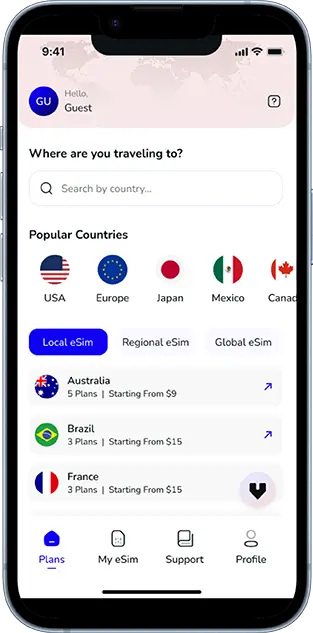
If you regularly travel or switch phones, an eSIM is a convenient alternative. It removes issues like damaged contacts, loose trays, and physical wear. Activation is digital and instant through a QR code, making it a reliable option for modern smartphones.
Practical Tips to Prevent Future SIM Problems
Avoid removing your SIM frequently, do not cut SIM cards manually, keep the phone away from water or heat, clean the SIM occasionally, always use the correct SIM tray, and keep your device updated.
FAQs
Why does my phone suddenly show No Service?
Weak signal, network outage, SIM misplacement, or temporary software issues are common causes.
How do I know if my SIM is damaged?
If your SIM doesn’t work in another phone or the contacts are scratched, it is likely damaged.
Can a software update cause SIM issues?
Yes. Updates sometimes conflict with network settings, but restarting or resetting network settings usually fixes the issue.
Does factory reset fix SIM problems?
It can fix deep software issues, but use it only after all other troubleshooting steps.
What should I do if there’s no service while traveling?
Enable roaming, select a network manually, ensure your device supports local bands, or use a local SIM or eSIM.
Should I switch to eSIM?
If you want convenience, instant activation, and fewer hardware issues, eSIM is a great choice.

Seamless Mobile Data Everywhere
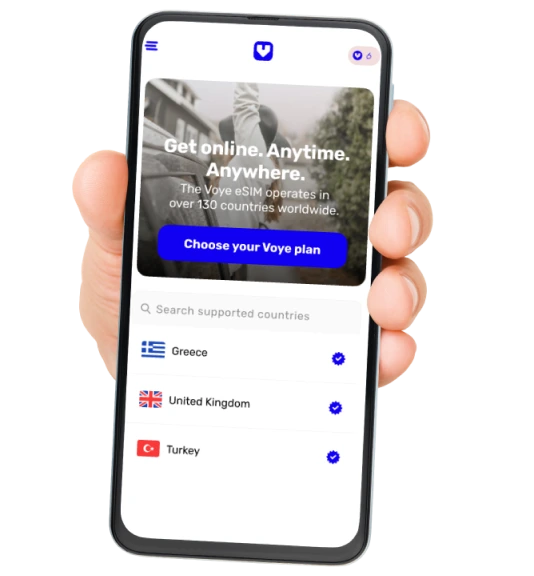
Voye Global — Your Trusted eSIM Partner for Secure & Reliable Travel.



 English
  日本語
日本語 


